
Star Color Correction: Getting the White Balance Right
Why Every Astrophotographer Should Know How to Color Correct Star Photos
To color correct star photos, follow these key steps:
- Shoot in RAW format to preserve full color data
- Set white balance to Daylight (around 5500K) before shooting
- Use lower ISO (200-800) to avoid blowing out star colors
- Stop down your aperture (e.g., f/4) to reduce star bloat
- In post-processing, use the white balance eyedropper on a diffuse area of sky — not on individual bright stars
- Adjust hue/saturation by color channel (red, blue, cyan) for targeted star color fixes
- Remove halos using the Defringe tool in Lightroom or Camera Raw
Look up at the night sky on a clear night and you might notice something surprising. Stars aren’t all the same color. Some glow a cool blue-white. Others burn a warm orange or deep red. These colors aren’t random — they tell a real story about each star’s surface temperature and age.
But here’s the problem: most beginner astrophotography shots end up with stars that look like plain white dots. All that color information gets lost.
It happens for a few reasons. Long exposures blow out star cores. High ISO settings reduce dynamic range. And default camera white balance settings aren’t built for the night sky.
The good news? Most of that color is still hiding in your image data — you just need to know how to bring it out.
This guide walks you through everything, from camera settings in the field to post-processing tricks in Lightroom, Photoshop, and PixInsight. Whether you’re shooting your first Milky Way or trying to nail star trails in your backyard, you’ll learn exactly how to get those rich, natural star colors showing up in your photos.
Why Accurate Star Color Matters in Astrophotography
In astrophotography, color isn’t just a matter of “looking pretty.” It is a direct representation of the physics of the universe. When we talk about stellar classification, we are looking at the surface temperature of these distant suns.
Blueish-green stars are the “hotshots” of the universe—they are significantly hotter than our Sun and have much shorter lifespans. Yellow stars, like our own Sun (classified as a G2V star), sit in the mid-range with a color temperature of about 5770K. On the cooler side of the spectrum, you find the orange and red stars, which are often nearing the end of their cosmic lives.
To keep our images grounded in reality, we often use the B-V color index. This is a photometric system that measures the difference in magnitude between the blue (B) and visual/yellow (V) filters. A G2V star has a color index of 0.625, which serves as a vital reference point for us when we want to color correct star photos. If we get the white balance wrong, we aren’t just making a “creative choice”—we are essentially rewriting the temperature of the stars!
Scientific Accuracy vs. Aesthetic Appeal
There is often a tug-of-war between making a photo look “cool” (literally, by making it very blue) and keeping it scientifically accurate. Human vision is naturally limited at night; our eyes switch from color-sensitive cones to light-sensitive rods, which is why the night sky looks mostly grayscale to the naked eye.
However, cameras can see a much wider spectral range. By using specific photometric systems, we can capture the true colors of the cosmos. The goal for many of us is to find a middle ground: a photo that feels like the “same sensation” as being under a dark sky, but with the hidden colors of the nebulae and stars revealed through careful processing.
Common Challenges in Capturing Star Hues
Capturing these colors isn’t always a walk in the park. One of the biggest enemies is light pollution, which casts a sickly orange or green glow over everything. Furthermore, many photographers fall into the trap of “blown-out stars.”
When you take a very long exposure to see a faint nebula, the bright stars in the field often reach sensor saturation. Once a pixel is “full” (pure white), all color information is gone forever. This is why many Milky Way photos have white stars—the exposure was simply too long or the ISO was too high for the stars themselves, even if it was perfect for the dust clouds.
Essential Camera Settings to Preserve Star Color Information
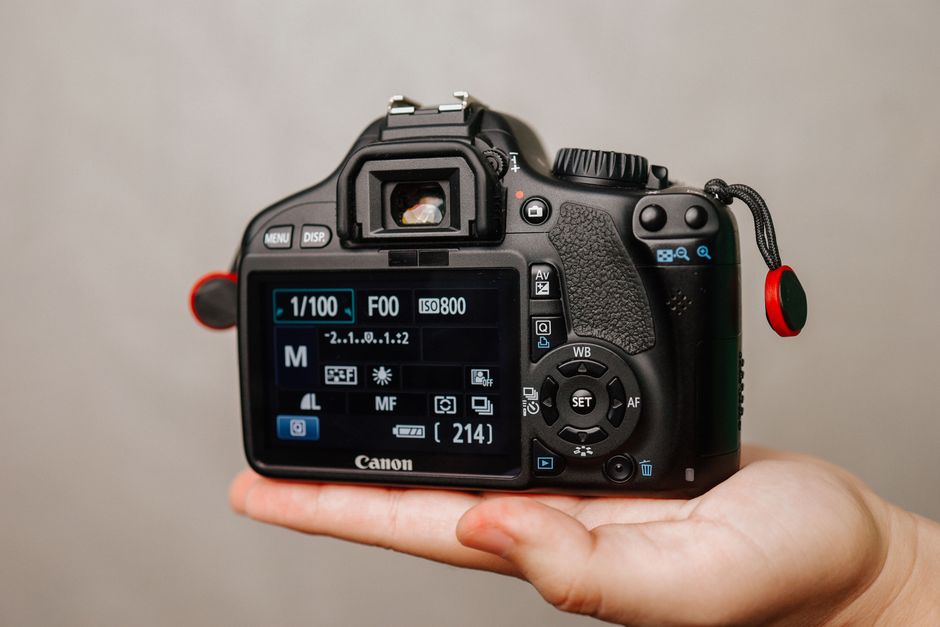
Before you even touch a slider in Lightroom, you need to set yourself up for success in the field. The most critical rule is to always shoot in RAW format. RAW files contain the “unbaked” data from your sensor, allowing you to change the white balance and recover highlights in post-processing without destroying the image quality.
We also recommend using a lower ISO than you might think. While ISO 6400 makes the Milky Way pop on your LCD screen, it severely limits your dynamic range. By dropping to ISO 800 or 1600, you preserve the “shoulders” of the histogram, keeping those star cores from clipping into pure white. For more detailed tips, you can check out our guide on adjusting ISO and exposure.
Avoiding Blown-Out Stars During Shooting
To keep your stars colorful, you have to manage “star bloat.” When a star is overexposed, it doesn’t just get brighter; it gets larger, eating up the surrounding pixels.
- Aperture Control: If you are using a fast f/1.4 or f/2.8 lens, consider stopping down to f/4. This often sharpens the stars and reduces the “blooming” effect that kills color.
- Shutter Speed: For star trails, instead of one 20-minute exposure, try 316 x 30-second exposures. This prevents the stars from burning through the sensor’s capacity.
- Histogram Monitoring: Keep an eye on the right side of your histogram. If the “mountain” of data is touching the far right edge, you are losing star color. Star Color is best preserved when the peaks are kept away from the absolute maximum.
The Role of White Balance in the Field
While you can change white balance later in RAW, setting it correctly in the field helps you judge your exposures better. Avoid “Auto White Balance” (AWB), as the camera will often try to “fix” the dark sky by turning it a weird muddy brown.
Setting your camera to Daylight (approx. 5500K) is a great baseline for unmodified cameras. It treats the stars as they are—distant suns. If you are in a heavy light pollution area, you might need to experiment with the Kelvin scale, but be careful not to go too blue, or you’ll lose the warm yellows of stars like Antares. For those using smartphones, we have a specific guide on night sky color correction to help you navigate these mobile limitations.
How to Color Correct Star Photos in Post-Processing
Once you’re back at your computer, the real magic happens. The first step to color correct star photos is setting a neutral background.
The “Eyedropper Method” is your best friend here. In Lightroom or Adobe Camera Raw, select the White Balance eyedropper and click on a part of the sky that should be “neutral.” Crucial Tip: Do not click on a star! Instead, click on a diffuse, “empty” part of the sky near the Milky Way. This tells the software that this dark void should be a neutral gray/blue, which usually snaps the star colors into their proper places. If you’re just starting, our post-processing for beginners guide is a great place to get your feet wet.
Using Photoshop to Color Correct Star Photos
Photoshop offers more surgical tools for color correction. One of the most effective is the Hue/Saturation tool.
Instead of just cranking the “Master” saturation (which makes everything look like a neon nightmare), try selecting individual color channels. If your blue stars look like “eye-bleeding blobs,” select the Blue channel and pull back the saturation or adjust the lightness.
You can also use the Lasso Tool to select specific areas of your image—like a particularly stubborn orange star—and adjust it without affecting the rest of the sky. This is a common technique in Milky Way post-processing to ensure the core looks vibrant while the stars remain natural.
Mobile Apps to Color Correct Star Photos
Don’t have a PC? You can still achieve great results on the go. Many mobile apps now offer “one-tap” corrections that use AI to identify blue-green casts common in night shots. However, for the best results, we recommend manual adjustments.
Focus on the “Tint” and “Temp” sliders first to neutralize the sky, then use “Vibrance” instead of “Saturation” to protect the colors that are already strong. We have a deep dive into master mobile editing techniques and even tips for adding clarity to constellations using only your phone.
Advanced Calibration in PixInsight
For those who want to go “full scientist,” PixInsight is the industry standard. It uses Photometric Color Calibration (PCC), which actually looks up the stars in your image against an online database (like the APASS or Gaia catalogs) to ensure the colors are 100% accurate.
| Feature | Photoshop | PixInsight |
|---|---|---|
| Ease of Use | High (Intuitive) | Low (Steep curve) |
| Color Accuracy | Visual/Aesthetic | Scientific/Database-driven |
| Star Removal | Manual/Plugins | Built-in (StarNet++) |
| Recombination | Layers/Masks | PixelMath |
One advanced trick is creating a “starless” image, processing the nebulosity to your heart’s content, and then recombining the stars later. This ensures your stars don’t get “stretched” or distorted while you are trying to make a faint nebula pop.
Advanced Techniques for Removing Artifacts and Halos
Even with perfect white balance, you might notice “nasty” rings around your stars. These are usually star halos or chromatic aberration, caused by lenses that can’t quite focus all colors of light at the same point.
This often happens when shooting wide open (like f/1.8). These halos can be purple, blue, or even green, and they can ruin an otherwise sharp image. To learn the quick way to fix this, check out this tip for removing star halos.
Fixing Purple and Green Halos
In Lightroom or Photoshop’s Camera Raw filter, head to the Lens Corrections tab and look for “Defringe.”
- Use the purple “Amount” slider to target those rings.
- Adjust the “Purple Hue” range until the halo disappears.
- Be careful! If you push it too far, your stars might turn green.
If you do end up with green artifacts (which are almost never natural in space), you can use the HLVG (Hasta La Vista Green) filter in Photoshop. It’s a lifesaver for cleaning up color halos and making your sky look deep and clean.
Enhancing Subtle Star Colors
If your stars look a bit pale, you can use a “saturation boost” trick. In Photoshop, select your stars (using Color Range or a star mask), copy them to a new layer, and set the blending mode to Color.
Then, increase the saturation on that layer and apply a very slight Gaussian Blur (0.5 to 1.0 pixels). This spreads the color from the edges of the star into the core, making them look rich and glowing without looking artificial. For more on making those details pop, see our guide on adding sharpness to star details.
Frequently Asked Questions about Star Color Correction
Why are my stars always white instead of colored?
This is almost always due to overexposure. When the star’s light “clips” the sensor, it loses all color data. Try lower ISO settings and shorter exposures (stacked together) to preserve the color in the star’s core.
How do I fix the orange glow from light pollution?
The easiest way is using the White Balance eyedropper on a dark patch of sky. For more stubborn glow, use a “Graduated Filter” in Lightroom and pull the “Temp” slider toward blue and the “Tint” slider toward magenta in the affected area.
What is the best white balance for the Milky Way?
For most cameras, Daylight (5500K) is the best starting point. If you are in a very dark sky location, you might prefer a slightly cooler setting around 4000K to 4500K to give the sky a deep, natural blue-black feel.
Conclusion
At Pratos Delícia, we believe that the night sky is one of the most rewarding subjects a photographer can tackle. While it might seem daunting at first, mastering the color correct star photos workflow is what separates a snapshot from a masterpiece. By getting your settings right in the field and using careful, non-destructive editing in post-processing, you can reveal the true, vibrant colors of the universe.
The goal is natural results that honor the science of the stars while creating a stunning visual experience. Ready to take your editing to the next level? Master your edits with our post-processing guides and start turning your night sky photos into celestial art. Happy shooting!
