
Phone Camera Settings for Night Sky Photography That Actually Work
Essential Night Sky Photography Settings Phone Users Need to Know
To move beyond “blurry white dots” and capture the actual structure of the cosmos, we need to take the steering wheel away from the phone’s “Auto” mode. The most critical night sky photography settings phone enthusiasts must master are ISO and shutter speed.
For capturing the Milky Way or a dense field of stars, we generally recommend an ISO between 1600 and 3200. ISO determines how sensitive your camera sensor is to light. While higher ISOs allow you to see more stars, they also introduce “noise” or graininess. On a smartphone’s smaller sensor, pushing past 3200 often results in a purple or grainy mess, so staying in that 1600–3200 sweet spot is key.
Shutter speed (or exposure time) is the next pillar. For stars, you want the shutter to stay open for 20 to 30 seconds. This allows the tiny amount of light from distant suns to actually register on your sensor. However, be careful: if you leave the shutter open longer than 30 seconds, the Earth’s rotation will cause the stars to appear as small lines rather than sharp points—a phenomenon known as star trailing.
If your phone allows it, set your aperture to the widest possible setting (the lowest f-number, like f/1.8 or f/1.7). This physically opens the “eye” of the camera as wide as possible to let light in.
Finally, always shoot in RAW or DNG format. Standard JPEGs compress the image and throw away the very data we need to highlight faint stars during editing. A DNG file is the digital equivalent of a film negative; it looks flat at first but contains all the “hidden” light we can bring out later. For more on managing these files, check out our guide on Smartphone Astrophotography: A Beginner’s Guide.
Manual Focus and White Balance Adjustments
Autofocus is useless in the pitch black. If you leave it on, your phone will “hunt” back and forth, resulting in a blurry blob. Instead, switch to Manual Focus and slide the toggle all the way to Infinity (often represented by a mountain icon). A pro tip: find a very bright star or a distant streetlight, zoom in on your screen, and fine-tune the focus until that light source is the smallest, sharpest dot possible.
For White Balance, avoid “Auto.” It often turns the night sky an ugly yellow or muddy brown. Set it manually to Daylight (around 5000K to 5600K). This preserves the natural blue and black tones of space. You can learn more about fine-tuning these specific values in our article on Adjusting ISO and Exposure in Editing for Clearer Night Sky Images.
Using Timers to Prevent Camera Shake
Even the steadiest hand vibrates enough to ruin a 20-second exposure. The mere act of tapping the screen to take the photo creates a “micro-shake” that blurs the stars. To fix this, we always use a self-timer. Set a delay of 3 to 10 seconds. This gives the phone time to stop vibrating after your touch before the actual exposure begins. For more stability hacks, see our Long Exposure Tips for Smartphone Night Photos.
Mastering Manual Controls and Specialized Apps
If your default camera app doesn’t have a “Pro” or “Manual” mode, don’t worry—there’s an app for that. Modern iPhones, for example, have a great “Night Mode,” but for true Milky Way shots, you might want more granular control over ISO and shutter speed than the native app provides.
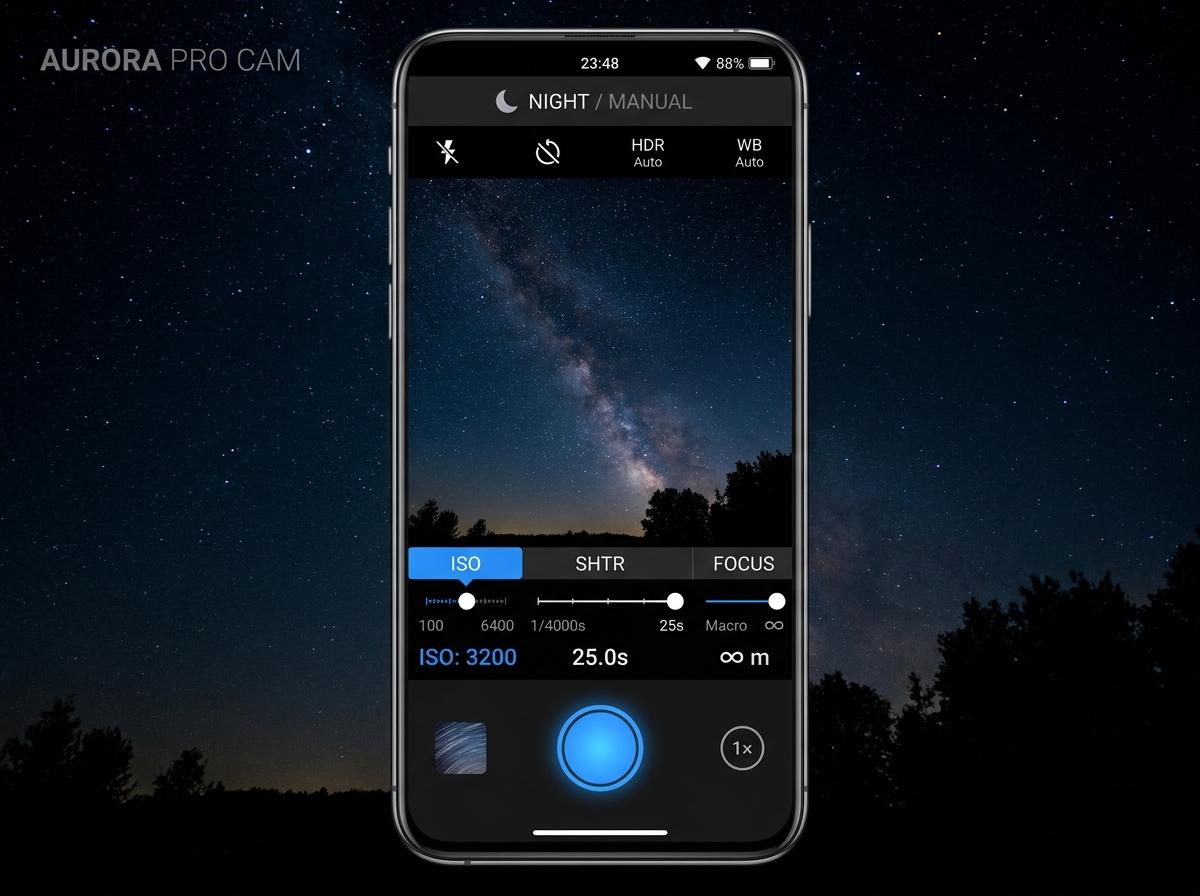
Third-party apps like NightCap, Slow Shutter Cam, or ProCam 8 for iPhone, and Camera FV-5 or ProShot for Android, unlock the full potential of your hardware. These apps allow you to lock the focus at infinity and precisely set your shutter to exactly 25 seconds. You can find a curated list of these in our review of Top Mobile Camera Apps for Long Exposure Shots.
Activating Night Sky Photography Settings Phone Features on Android and iPhone
Google Pixel users have a massive advantage with Astrophotography Mode. This isn’t just a long exposure; it’s computational magic. When the phone is perfectly still (on a tripod) and pointed at a dark sky, the “Night Sight” moon icon will transform into stars. In this mode, the Pixel takes up to 16 individual 16-second exposures over the course of about 4 minutes, then uses the Tensor chip to align and merge them, effectively deleting noise and bringing out incredible detail.
iPhone users (iPhone 11 and later) can utilize the built-in Night Mode. When the phone detects it is on a tripod, the maximum exposure time often jumps from 10 seconds up to 30 seconds. While the iPhone does a lot of the heavy lifting automatically, ensuring you’ve toggled the exposure slider to “Max” is essential for the best results.
Best Apps for Stargazing and Planning
You can’t take a photo of the Milky Way if it’s currently below the horizon or hidden behind a city’s light glow. Planning is 90% of the work. We use apps like PhotoPills or Sky Guide to see exactly where the Milky Way core will be at any given hour. These apps use Augmented Reality (AR) to show you the stars’ positions through your phone’s camera in real-time. For a deeper dive into planning your first outing, visit our Night Sky Photography: A Complete Guide for Beginners.
Planning Your Shoot for Maximum Clarity
The biggest enemy of the night sky photography settings phone users choose is light pollution. If you are in the middle of a city, no amount of setting adjustments will reveal the Milky Way.

We recommend using a Light Pollution Map to find “Dark Sky” locations. Look for areas rated 3 or lower on the Bortle Scale. A Bortle 1 site is a total wilderness with a sky so bright with stars it casts a shadow, while a Bortle 9 is downtown Manhattan. Aim for at least a Bortle 4 for decent results.
Weather is your second hurdle. Even a thin layer of high-altitude clouds can blur your stars. Use apps like Astrospheric or Clear Outside, which provide detailed cloud cover forecasts specifically for astronomers. Finally, check the moon phase. A full moon is essentially a giant lightbulb in the sky that washes out the stars. The best time to shoot is during the New Moon or the week surrounding it.
Essential Gear for Stable Long Exposures
You cannot hold a phone steady for 30 seconds. It is physically impossible. You need a tripod. It doesn’t have to be a massive, expensive professional rig; a simple GorillaPod or a basic smartphone tripod mount will do the trick. If you’re in a pinch, you can prop your phone against a rock or a balled-up towel, but a dedicated mount is a worthy investment.
Also, long exposures and cold nights drain batteries fast. Always bring an external battery pack. Keeping your phone plugged in ensures you don’t run out of juice right as the Milky Way core reaches its peak position. For a full gear checklist, read our guide on Mobile Astrophotography for Beginners.
Composition and Foreground Elements
A photo of just stars can be a bit boring. To make your images “pop,” include foreground elements. This could be a lone tree, a mountain range, an old barn, or even a person silhouetted against the sky.
Use the Rule of Thirds: place the horizon on the bottom third of the frame to give the sky more room to breathe. If the foreground is too dark, you can use a technique called light painting. Briefly shine a dim flashlight or your headlamp on the foreground object for a second or two during the 30-second exposure to give it a ghostly, illuminated look. For more creative ideas, see our Night Sky Photography – A Beginner’s Guide.
Step-by-Step Guide to Capturing Celestial Objects
- Arrive Early: Get to your location while there is still a little light to scout your composition and set up your tripod.
- Stability First: Mount your phone and ensure the tripod is on solid ground. Even wind can vibrate a lightweight tripod.
- Dial in Settings: Open your Pro mode or manual app. Set ISO 1600, Shutter 25s, Focus Infinity, and WB 5000K.
- The Test Shot: Take a photo. Is it too dark? Bump the ISO to 3200. Are the stars blurry lines? Drop the shutter to 20 seconds.
- Check Focus: Zoom in on the result. If the stars look like donuts or blurry circles, your focus is off.

Advanced Night Sky Photography Settings Phone Techniques for Star Trails
If you want those beautiful circular star trails, you’ll need to use image stacking. Instead of one long exposure (which would just result in a white screen), you take 50 to 100 consecutive 30-second shots. You then use an app like StarStaX or Sequator to merge them. The software keeps the brightest parts of each photo (the stars) and layers them, creating a continuous line.
Remember the 500 Rule: To avoid trails in a single shot, divide 500 by the focal length of your lens. Since most phone lenses are around 24mm-26mm (equivalent), 500 / 24 = ~20 seconds. Anything longer than 20 seconds will start to show slight movement. For advanced users, we have a deep dive in Mastering Mobile Astrophotography: A Beginner’s Guide.
Photographing Planets and Deep-Sky Objects
Planets like Jupiter or Saturn require different night sky photography settings phone users are used to. Because planets are actually quite bright, a 30-second exposure will just turn them into a white glare. Switch to ISO 400 and a much faster shutter speed, like 1/250s.
To get real detail, like Saturn’s rings or Jupiter’s moons, you’ll need a telescope. You can buy a simple “smartphone telescope adapter” that clamps your phone’s camera to the telescope’s eyepiece. This is called eyepiece projection, and it’s the easiest way to start “real” astrophotography.
Post-Processing Tips for Stunning Results
The photo straight out of the camera is just the raw material. To make it look professional, you need to edit. We recommend Adobe Lightroom Mobile or Snapseed.
- Contrast and Blacks: Increase the contrast and drop the “Blacks” slider to make the sky look deep and dark.
- Highlights and Whites: Boost these to make the stars sparkle.
- Noise Reduction: Use the “Luminance Noise Reduction” slider carefully. It will remove the grain, but if you go too far, the stars will look like a blurry painting.
- Dehaze/Clarity: These tools are great for cutting through any atmospheric haze and making the Milky Way core stand out.
For a step-by-step editing tutorial, visit our guide on Adjusting ISO and Exposure in Editing for Clearer Night Sky Images.
Common Mistakes to Avoid in Mobile Astrophotography
- Digital Zoom: Never use it. It just crops the image and destroys the quality. Always use your phone’s widest primary lens.
- Flash: Make sure it is turned off. It won’t reach the stars, but it will illuminate the dust in the air right in front of your lens, ruining the shot.
- Dirty Lenses: Our phones live in our pockets. A fingerprint smudge on the lens will turn every star into a blurry streak. Wipe your lens with a microfiber cloth before you start.
Frequently Asked Questions about Smartphone Astrophotography
Can I take Milky Way photos with any phone?
Most mid-to-high-end smartphones from the last 3-4 years can do it. The main requirement is the ability to manually set a long shutter speed (at least 15-20 seconds). If your native app doesn’t allow this, a third-party manual camera app usually will.
Why are my star photos blurry or grainy?
Blur is usually caused by tripod movement or incorrect focus. Grain (noise) is caused by an ISO that is too high. Try lowering your ISO and increasing your shutter speed, and always use a timer to trigger the shot.
Do I need a telescope for night sky photography?
Not for wide-angle shots of the Milky Way or constellations! A telescope is only necessary if you want to take “close-up” photos of planets, the moon’s craters, or distant nebulae.
Conclusion
Capturing the cosmos is no longer reserved for those with thousands of dollars in gear. By mastering the night sky photography settings phone cameras offer, you can bring the wonders of the universe onto your screen. It takes a bit of practice, a dark sky, and a sturdy tripod, but the first time you see the Milky Way appear on your phone’s display, you’ll be hooked.
For more expert advice on capturing the world around you, Visit Pratos Delícia for more photography tips. Happy stargazing!
