
City Lights and Starry Nights: Creating Urban Star Trails
What Is a Photoshop Star Trail Composite (And How Do You Make One)?
A Photoshop star trail composite is one of the most rewarding things you can create as a night photographer. The good news? It only takes three core steps.
Here’s how to create a star trail composite in Photoshop:
- Capture multiple night sky photos in succession on a stable tripod
- Stack them in Photoshop using File > Scripts > Load Files into Stack
- Change the blend mode of all layers (except the bottom) from Normal to Lighten
That’s it. Photoshop does the rest almost instantly — even with 200+ layers.
Star trails show the apparent movement of stars across the sky over time. They aren’t actually moving — we are. The Earth’s rotation causes stars to trace arcs of light when captured across many exposures.
The traditional approach uses a single very long exposure. But stacking multiple shorter shots in Photoshop gives you far more control. You can remove airplane trails, fix lighting mistakes, and clean up noise — none of which is possible with one long exposure baked into a single file.
Whether you’re shooting over a city skyline or a desert landscape, this technique works beautifully — even for beginners with modest gear.
Photoshop star trail composite terminology:
Essential Gear and Camera Settings for Night Sky Stacking
Before we dive into the digital darkroom, we need the right ingredients. Capturing a Photoshop star trail composite starts in the field. If your source images aren’t sharp and steady, no amount of Photoshop magic can save them.
The Gear List
- A Rock-Solid Tripod: This is the most critical piece of equipment. Since we are stacking dozens or even hundreds of images, the camera cannot move even a fraction of a millimeter. If the tripod shifts, your stars will have “jumps” or “hiccups” in the trails.
- An Intervalometer: Most modern cameras have a built-in interval timer. If yours doesn’t, an external remote shutter release is essential. This allows us to take back-to-back photos without touching the camera, which prevents vibration.
- Wide-Angle Lens: A wider focal length (14mm to 24mm) captures more of the sky and makes the star rotation more dramatic.
Camera Settings for Success
We want to capture as much light as possible without letting the city lights completely blow out the image.
- Mode: Manual (M).
- Focus: Manual focus set to infinity. Use your camera’s screen to zoom in on a bright star or a distant city light to ensure it’s tack sharp.
- Aperture: Wide open or slightly stopped down. Anywhere from f/2.8 to f/6.3 works well depending on your lens.
- ISO: Keep this relatively low to manage noise, especially in urban areas. ISO 200 to 800 is usually the sweet spot.
- Shutter Speed: 20 to 30 seconds per shot is standard.
To learn more about the shooting process, check out our guide on One Simple Way to Capture Star Trails.
Stacking vs. Single Long Exposure
Why do we bother with a Photoshop star trail composite instead of just leaving the shutter open for 30 minutes? Here is why stacking wins every time:
| Feature | Single Long Exposure | Stacking (Composite) |
|---|---|---|
| Noise Level | High (Sensor heats up) | Low (Sensor stays cooler) |
| Airplane Trails | Permanent | Easily removed with masks |
| Foreground Lighting | Hard to balance | Easy to blend separately |
| Flexibility | “One shot” risk | Can use frames for time-lapse too |
| Total Exposure Time | Limited by battery/heat | Can span 5-8 hours (700+ shots) |
Step-by-Step Guide to Your First Photoshop Star Trail Composite
Now that we have our memory card full of stars, it’s time to head to the computer. This is where the “magic paper” analogy comes in. Imagine you have a stack of 100 photos. If you just lay them on top of each other, you only see the top one. We need to make the “paper” transparent for everything except the bright stars.
Preparing RAW Files in Adobe Camera Raw
Before we stack, we should process our RAW files. Consistency is key here. If one photo is warmer or brighter than the rest, the trail will look flickering or inconsistent.
- Open all your images in Adobe Camera Raw (ACR).
- Select all images (Cmd/Ctrl + A).
- Apply lens corrections to remove vignetting and chromatic aberration. Note: Avoid heavy distortion correction if you plan to keep the foreground perfectly aligned.
- Adjust exposure, contrast, and white balance.
- Set your “Camera Raw Defaults” so that every image is treated identically.
- Export them as 16-bit TIFFs or JPEGs for the best quality-to-speed ratio.
For a deeper dive into these initial steps, see our article on Astrophotography Post-Processing for Beginners.
Using Load Files into Stack for a Photoshop Star Trail Composite
Loading 200 images manually would be a nightmare. Thankfully, Photoshop has a script for this.
- Go to File > Scripts > Load Files into Stack.
- Click Browse and select all the images from your shoot.
- Important: Do not check “Attempt to Automatically Align Source Images” if you used a steady tripod. This checkbox consumes massive amounts of RAM and can actually introduce errors in the star patterns.
- Click OK. Now, lean back and relax. If you have a slow computer and 700 frames, this is the perfect time to go grab a drink or a snack!
Mastering the Lighten Blend Mode
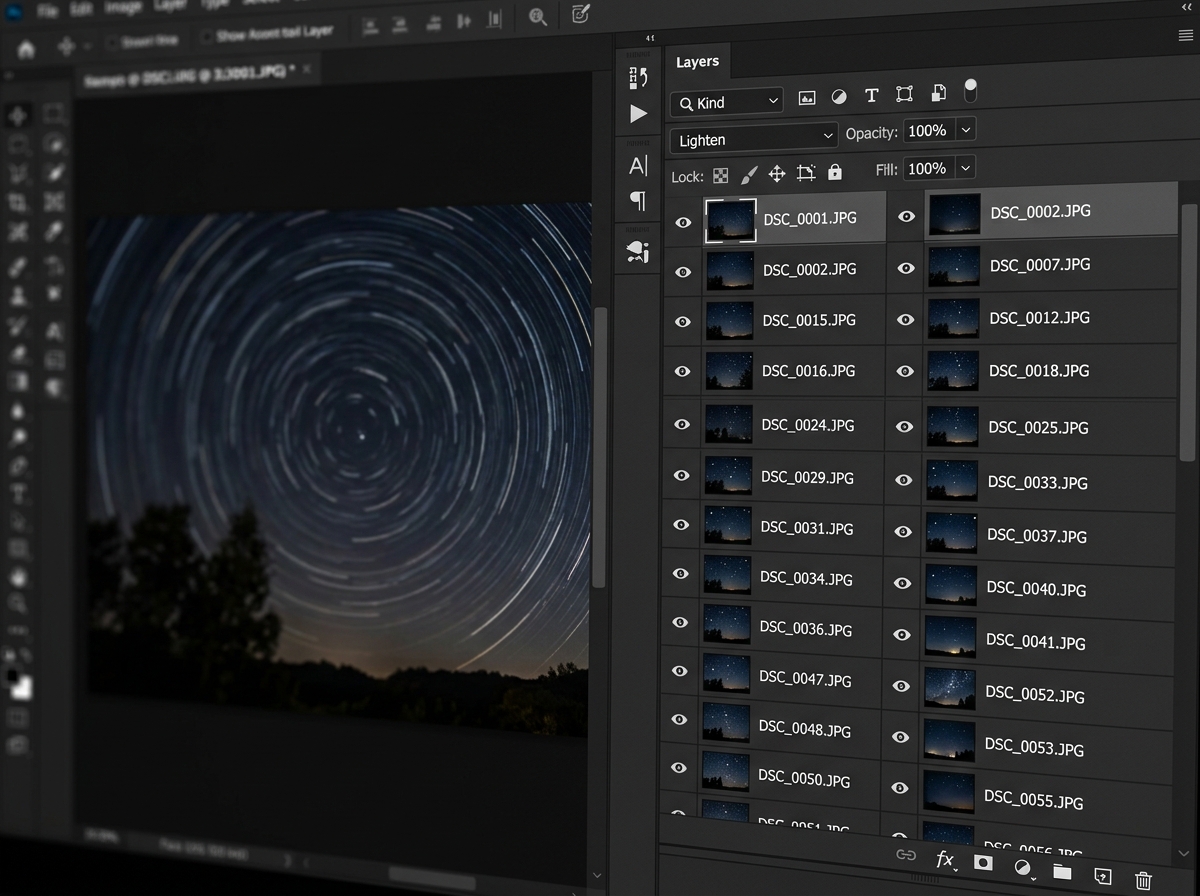
Once Adobe Photoshop finishes loading your layers, you’ll see a giant list in your Layers panel, but your main window will only show the top image. Here is the secret sauce:
- Select the top layer in the Layers panel.
- Scroll down to the bottom layer, hold Shift, and click it. (Wait! Don’t select the very bottom layer—keep that one as your base).
- With all layers except the bottom one highlighted, go to the Blend Mode dropdown menu (it usually says “Normal”).
- Change it to Lighten.
Why Lighten? This blend mode tells Photoshop: “Compare this layer to the one below it. If a pixel is lighter on this layer, show it. If it’s darker, hide it.” Since stars are the brightest part of the night sky, they “bleed” through every layer, creating a continuous trail.
The “Faster Method” for CC Users: In newer versions of Photoshop CC, you can simply select all layers and change the blend mode once. It is near-instantaneous and incredibly satisfying to watch the trails appear out of nowhere!
Advanced Cleanup: Removing Airplanes and Light Flares
Living in a city means dealing with light pollution and air traffic. In a 28-minute exposure, you might have ten airplanes fly through your frame. If you’re near a flight path like San Diego or London, your sky might look like a game of Tic-Tac-Toe.
The Power of Non-Destructive Layer Masks
Instead of using the eraser tool (which is permanent and “destructive”), we use Layer Masks. Remember this golden rule: White reveals, Black conceals.
- Identify the layer with the airplane trail. (Pro tip: Toggle the “eyeball” icon on and off to find the culprit).
- With that layer selected, click the Add Layer Mask icon (the rectangle with a circle in it) at the bottom of the Layers panel.
- Select the Brush Tool (B).
- Set your foreground color to Black.
- Paint over the airplane trail on the image. Because we are in “Lighten” mode, the airplane trail disappears, and the star trail from the layer below fills the gap.
This technique is also perfect for removing “hot spots” from light painting or accidental flashes of light from a passing car. If you make a mistake, just switch your brush to white and paint it back in! For more tips on cleaning up your night shots, read about Eradicating Noise from Night Photos Using Apps.
Creative Variations: Single-Image Trails and Vortex Effects
What if you only have one great photo of the stars? Or what if you want to create something more abstract, like a “vortex” where the stars seem to spiral into the center?
The Single-Image “Fake” Trail
You can simulate a Photoshop star trail composite from a single image using the Duplicate Transform trick:
- Duplicate your sky layer and set it to Lighten.
- Press Cmd/Ctrl + T for Free Transform.
- Move the anchor point to where the North Star would be.
- Rotate the image by a tiny amount—just 0.1 degrees. Hit Enter.
- Now, hold Cmd+Shift+Opt+T (Mac) or Ctrl+Alt+Shift+T (PC). This tells Photoshop to “Duplicate and Repeat the last transform.”
- Tap that key combination 40 to 60 times. Each tap adds a new layer, slightly rotated, creating a trail!
The Vortex Effect
Traditionally, a vortex trail requires a motorized zoom lens during a long exposure. In Photoshop, we can use the “HM Technique.” By combining the rotation trick mentioned above with a slight scale increase (e.g., 100.1%), the stars will spiral outward, creating a breathtaking “warp speed” effect.
Frequently Asked Questions about Photoshop Star Trail Composites
Troubleshooting Your Photoshop Star Trail Composite
- Why are there gaps in my trails? This is usually caused by “shutter lag.” Even a 1-second gap between photos can cause a tiny break in the trail. To fix this, you can use specialized software or zoom in to 300% and use a small brush to manually bridge the gaps.
- My computer is crashing! Stacking 200+ layers at 16-bit resolution requires a lot of RAM. If you’re struggling, try merging layers in small batches (e.g., stack 20, merge them, then add the next 20).
- The foreground is blurry. If your tripod moved slightly, your foreground will be a mess. Use a layer mask on a single, sharp foreground image and place it at the very top of your stack to keep the “earthly” parts of your photo crisp.
For more editing insights, check out Star Trail Image Editing: A New Dimension to the Night Sky.
Why are my star trails straight instead of circular?
The shape of your trails depends entirely on which direction your camera is facing:
- North: If you center the North Star, you’ll get perfect circles.
- South: You’ll see arcs curving around the South Celestial Pole.
- East/West: Stars will appear to move in straighter lines or gentle “S” curves as they rise or set.
Why Photoshop Excels for Star Trail Composites
While dedicated software like StarStaX is great for quick results, Photoshop is the professional choice for several reasons:
- 16-bit Support: Dedicated freeware often forces you into 8-bit JPEGs, which can cause “banding” in the dark sky. Photoshop handles high-bit-depth TIFFs with ease.
- Automation: You can record an Action to do all the stacking and blending for you.
- Total Control: The ability to use layer masks to remove a single airplane without affecting the rest of the sky is a game-changer.
Conclusion
Creating a Photoshop star trail composite is a journey of patience and precision. From the moment you set up your tripod in the bustling city to the final click of the “Lighten” blend mode, you are capturing time itself.
At Pratos Delícia, we believe that every night sky tells a story, even when framed by city skyscrapers. By mastering these stacking techniques, you can turn a series of simple snapshots into a magical piece of visual storytelling.
So, next time the sun goes down, don’t pack away your gear. Grab your tripod, find a clear patch of sky, and start your astrophotography journey today. We can’t wait to see the trails you create!
