
Turn Your Live Photos into Long Exposure Masterpieces
What It Means to Make a Live Photo Long Exposure (And Why It’s Easier Than You Think)
Learning how to make live photo long exposure shots on your iPhone takes just a few taps — no extra gear required. Here’s the quick version:
- Open your Camera app and make sure the Live Photo icon (the concentric circles) is turned on
- Take your photo — keep your iPhone as still as possible
- Open the shot in the Photos app
- Tap the Live badge in the corner
- Select Long Exposure from the dropdown menu
That’s it. Your iPhone does the rest.
Every time you take a Live Photo, your iPhone quietly records 1.5 seconds before and after you press the shutter. That’s a 3-second video clip built into every single shot.
When you apply the Long Exposure effect, your iPhone stacks all those frames on top of each other. Moving subjects — like water, traffic, or people — blur together. Still objects stay sharp. The result looks like something you’d need a professional camera and a tripod to pull off.
It’s one of those features hiding in plain sight that completely changes what you can do with a smartphone camera.
Whether you want silky waterfalls, dreamy light trails, or creative ghost effects, this built-in trick delivers — and you already have everything you need in your pocket.

Understanding the Magic of iPhone Long Exposure
For decades, long exposure photography was the playground of professionals with heavy gear. If we wanted to capture that “milky” water effect or streaks of light from passing cars, we needed a DSLR or mirrorless camera, a sturdy tripod, and often a set of Neutral Density (ND) filters. These filters act like sunglasses for your lens, allowing the shutter to stay open for seconds or even minutes without overexposing the image.
On an iPhone, the process is fundamentally different but equally brilliant. Instead of keeping a physical shutter open, the iPhone uses the motion data captured in a 3-second Live Photo. By employing a technique called frame layering, the iOS software takes the individual video frames from that 3-second clip and blends them into a single still image.
This software-based approach is a “wow” trick that puts professional-level effects into our everyday photography. Because the iPhone is constantly calculating the exposure and aligning the frames, it can often compensate for a slightly shaky hand—something a traditional camera could never do without a tripod.
If you are interested in how this tech works during the darkest hours, you might want to dive into our guide on how to capture-the-night-long-exposure-smartphone-photography. Essentially, the iPhone is doing the heavy lifting of a darkroom editor in a fraction of a second, simulating a slow shutter speed that would normally require a much more complex setup.
How to Make Live Photo Long Exposure Shots Step-by-Step
Before we can create a masterpiece, we have to ensure our tools are set up correctly. The most important step in how to make live photo long exposure shots is actually capturing the data in the first place.
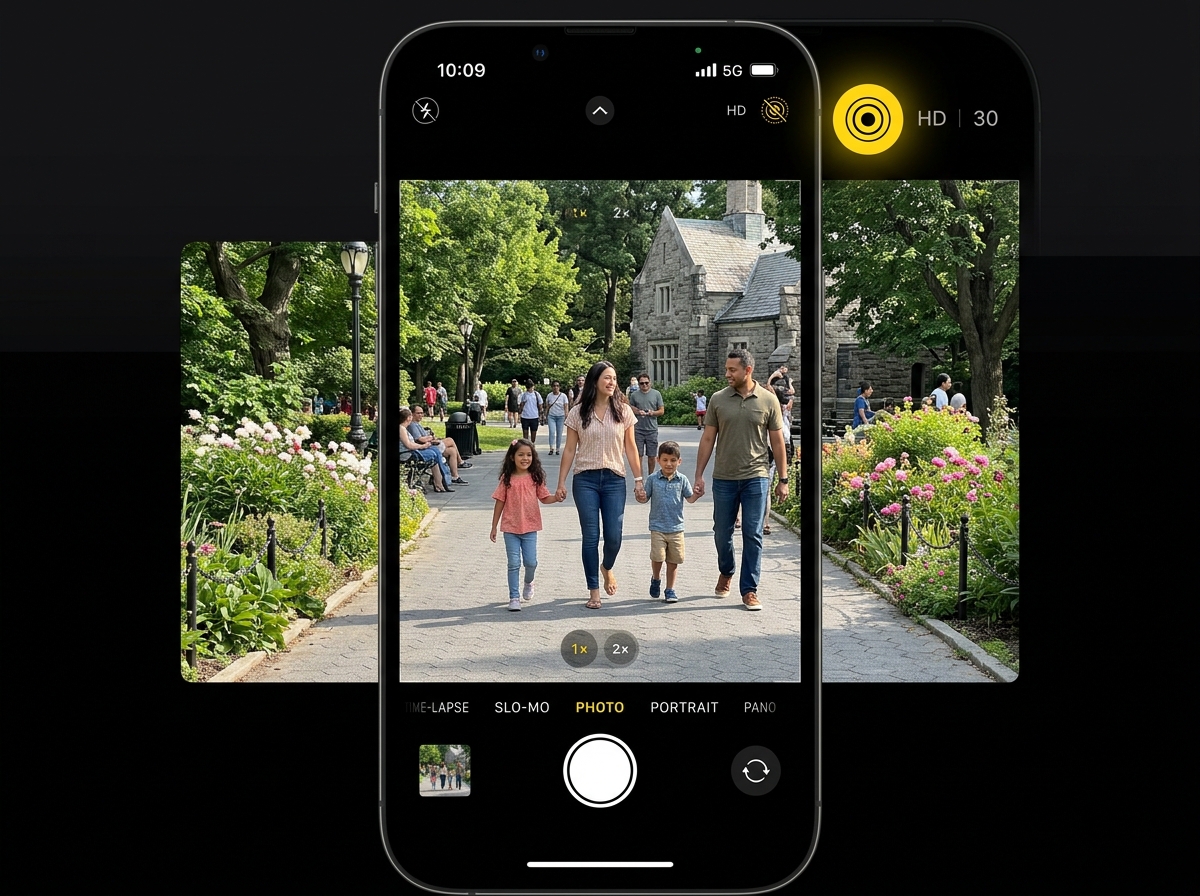
Step 1: Enable Live Photos
Open your Camera app and look at the top right corner (or top center, depending on your model). You are looking for an icon that looks like a set of concentric circles.
- If the icon has a slash through it, it’s off. Tap it to turn it on.
- When enabled, the icon usually turns yellow, and a small “LIVE” badge will briefly appear at the top of the viewfinder.
Step 2: Compose and Capture
Find a subject with constant motion—like a fountain, a busy street, or a windy field of grass. Hold your iPhone with a steady grip. While the iPhone’s software is great at stabilizing, the better your initial “hold,” the sharper your final image will be.
Tap the shutter button and—this is the crucial part—keep holding still for at least a second after the click. The iPhone is recording for 1.5 seconds after you press the button! For more official details on the capture process, you can check out the Take and edit Live Photos – Apple Support page.
Converting Your Shot on iOS 15 and Later
Apple updated the interface slightly in iOS 15, making it even faster to toggle between effects. Once you have taken your photo, follow these steps:
- Open the Photos app and select the Live Photo you just took.
- In the top left corner of the screen, you will see a button that says Live with a small downward arrow.
- Tap that button to reveal a dropdown menu.
- Select Long Exposure.
The phone will take a moment to process, and suddenly, the movement in your photo will melt into a beautiful blur. The best part? This change is non-destructive. The iPhone saves the effect automatically, but your original 3-second clip is still tucked away underneath if you ever want to change it back.
How to Make Live Photo Long Exposure on Older iOS Versions
If you are rocking an older device or haven’t updated to iOS 15 or later, the process is just a tiny bit different. On iOS 14 and earlier:
- Open your Live Photo in the Photos app.
- Swipe up on the photo. This will reveal a “Live Photo Effects” gallery below the image.
- Swipe through the effects (usually Loop, Bounce, and Long Exposure).
- Tap on Long Exposure to apply it.
Even on older versions of iOS, the effect is stunning. It’s a great way to breathe new life into old vacation photos that you happened to take with “Live” mode turned on!
Pro Tips for Stunning Motion Blur Results
While the iPhone makes it easy, there is a difference between a “good” shot and a “masterpiece.” One of the biggest factors is stability. Even though the iPhone uses digital stabilization to align the frames, it has to crop the edges of the photo to make that happen. The more you move, the more the iPhone has to crop, which can lead to a loss in resolution.
| Feature | Handheld | Using a Tripod |
|---|---|---|
| Sharpness of Static Objects | Good (Software stabilized) | Excellent (Perfectly sharp) |
| Image Cropping | Significant (To fix shake) | Minimal to None |
| Resolution | Slightly Reduced | Full Resolution |
| Best For | Casual travel, quick snaps | Waterfalls, car trails, professional look |
Using a tripod or even just bracing your phone against a wall or a railing will significantly improve the quality. If you’re looking for more ways to sharpen your night shots, our long-exposure-tips-for-smartphone-night-photos guide offers deep dives into stabilization techniques.
Furthermore, if you are moving into the realm of astrophotography, you might want to explore star-trail-image-editing-a-new-dimension-to-the-night-sky to see how stacking frames can create those circular star patterns.
Best Subjects for How to Make Live Photo Long Exposure Effects
Not every photo benefits from a long exposure. If you take a long exposure of your cat sleeping, it’s just going to look like… a photo of a cat sleeping. To get that “wow” factor, you need a mix of stationary objects and moving elements.
- Moving Water: This is the classic use case. Waterfalls, ocean waves crashing against rocks, or even a backyard fountain become misty and ethereal.
- Traffic Trails: At dusk (the “blue hour”), find an overpass. The headlights and taillights of cars will turn into long ribbons of white and red light.
- Crowds: Want to make a busy tourist spot look like a ghostly transit hub? A long exposure will blur the moving people into colorful streaks while the architecture remains solid.
- Fairground Rides: Carousels and Ferris wheels are perfect subjects because they have consistent, circular motion.
- Light Painting: Have a friend move a sparkler or a glow stick while you take a Live Photo. It’s the closest you’ll get to being a ghost hunter without moving to the Tower of London!
For those who want to push past the 3-second limit of Live Photos, there are several top-mobile-camera-apps-for-long-exposure-shots that allow for much longer capture times.
Limitations and Advanced Alternatives
As much as we love the built-in Live Photo trick, it does have its boundaries. The most obvious is the 3-second duration. Because it only captures 1.5 seconds on either side of the shutter press, you can’t get those ultra-long 30-second blurs that make the ocean look like a flat sheet of ice.
Another limitation is low light. While the iPhone is a marvel, the Live Photo feature is essentially a video clip. In very dark environments, video can become grainy or “noisy.” This is where Night Mode comes in. Night Mode on iPhone can take exposures up to 10 seconds handheld, and up to 30 seconds if it detects the phone is on a tripod. However, Night Mode is designed to make things brighter, whereas the Live Photo effect is designed to make things blurry.
If you find yourself hitting these limits often, you might consider third-party apps. Apps like Spectre Camera use AI to allow for exposures up to 30 seconds in broad daylight without needing ND filters. For a list of our favorites, check out top-mobile-camera-apps-for-long-exposure-shots-2.
Frequently Asked Questions about iPhone Long Exposure
Can I revert a Long Exposure back to a Live Photo?
Yes! One of the best things about the iPhone’s “Edit” system is that it is non-destructive. If you decide you don’t like the long exposure effect, simply open the photo, tap the Long Exposure badge in the corner, and select Live to return it to its original state. You can also tap Edit and use the revert button to strip away all changes.
Why does my long exposure look blurry or cropped?
This usually happens because of camera shake. When you apply the effect, the iPhone looks for static points (like a rock or a building) to align all the frames. If the phone moved too much during those 3 seconds, the software has to crop the image heavily to keep those static points in the same place. To fix this, try to brace your phone against a solid object or use a tripod next time.
Does this feature work on all iPhone models?
Live Photos were introduced with the iPhone 6s in 2015. However, the specific “Long Exposure” effect was added with iOS 11 in 2017. If you have an iPhone 6s or newer and your software is up to date, you should have this feature! Some newer models may produce cleaner results due to better sensors and faster processors, but the core functionality is available on most iPhones in use today.
Conclusion
At Pratos Delícia, we believe that the best camera is the one you have with you, and the iPhone is a powerhouse of creative potential. Mastering how to make live photo long exposure shots is more than just a cool party trick; it’s a way to change how you see the world. It encourages us to look for motion, to appreciate the flow of water, and to capture the energy of a city in a way that a standard “still” simply can’t.
By using the 3-second buffer your phone already captures, you can turn a simple vacation snap into a piece of art. So, the next time you’re by the coast or watching the city lights flicker to life, turn on that Live Photo icon and see what magic you can create.
Ready to take your mobile photography to the next level? Explore our full photography guides for more tips, tricks, and tutorials on capturing the perfect shot. Happy shooting!
