
Why Galaxy Star Photo Editing Can Transform Your Night Sky Shots
Galaxy star photo editing is the process of enhancing, compositing, or creating celestial images — from sharpening real Milky Way captures to adding stunning star effects to ordinary photos.
Here are the main tools and methods you can use:
| Method | Best For | Skill Level |
|---|---|---|
| AI inpainting tools | Adding or removing stars automatically | Beginner |
| Adobe Photoshop | Creating stars from scratch, sky replacement | Intermediate |
| Image stacking (Registax) | Reducing noise in telescope/phone photos | Intermediate |
| Mobile apps (StarEdit, Galaxy 360) | Quick edits and effects on the go | Beginner |
| Galaxy overlays (Photoshop, PicsArt) | Adding galaxy textures to any photo | Beginner |
Night sky photography is genuinely hard. Long exposures, low light, and grainy results leave a lot of beginners frustrated. Traditional astrophotographers using DSLRs often shoot more than 120 long exposures over several hours just to get one clean image.
But things have changed fast.
Smartphones, AI-powered editors, and accessible apps have made it possible for anyone to produce breathtaking star and galaxy images — even without expensive gear. Whether you captured a blurry Milky Way on your phone or want to add a dramatic starry sky to a portrait, there are now real tools that can help.
This guide walks you through all of them — from capture to final edit.
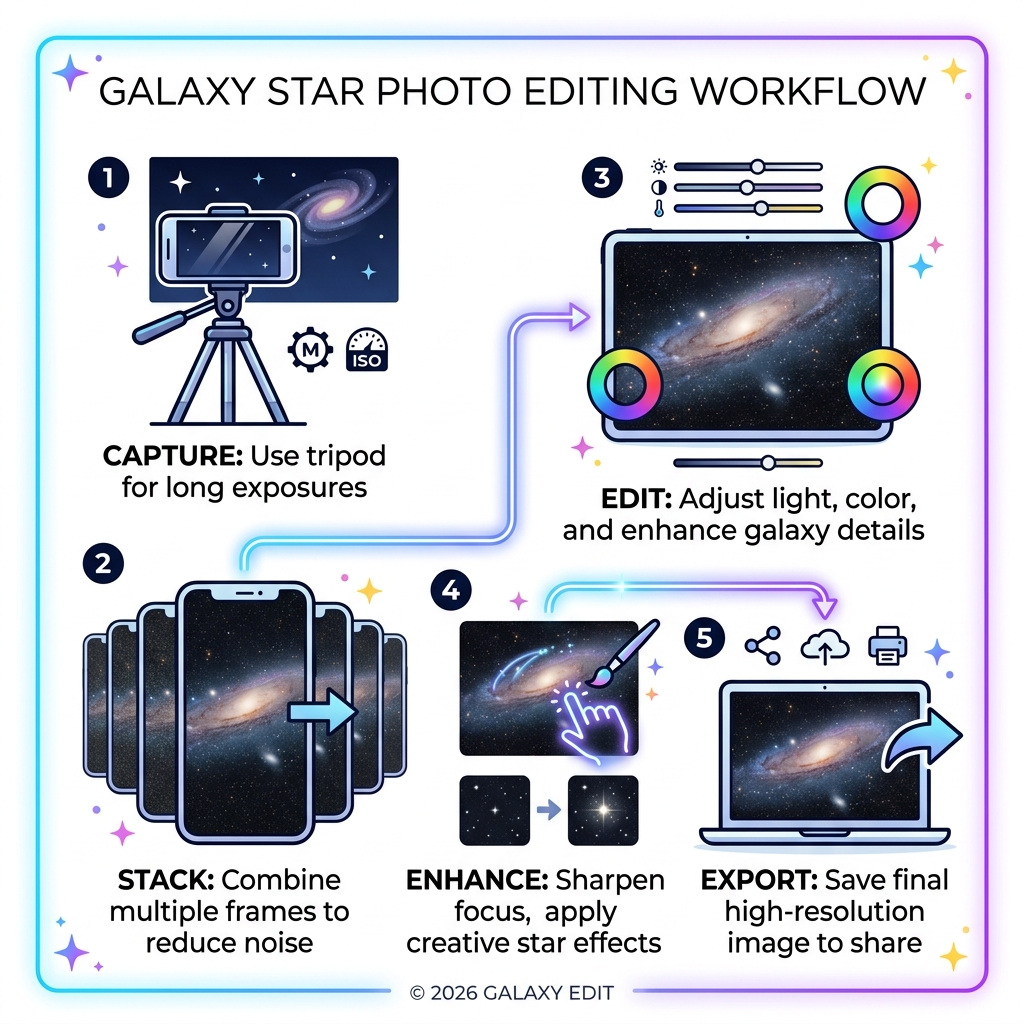
Capturing the Foundation: Smartphone Astrophotography Best Practices
Before we dive into the pixels and sliders of galaxy star photo editing, we need to talk about the “raw ingredients.” You can’t bake a five-star cake with expired flour, and you can’t create a stunning galaxy edit with a blurry, handheld photo.
Capturing the night sky with a smartphone is now entirely possible, but it requires a bit of discipline. The most critical piece of equipment isn’t a better lens; it’s a stable surface. Because night shots require long exposures—often 30 seconds or more—even the tiniest heartbeat can cause “star trails” or blur. We always recommend using a professional tripod or, at the very least, propping your phone against a rock using a self-timer (3 to 10 seconds) to avoid the shake caused by your finger tapping the screen.
Pro Settings for Success
To get the best results, switch your camera to “Pro” or “Manual” mode. Here is the magic formula we use:
- ISO Settings: Keep this between 400 and 1600. Too high, and your photo looks like colorful sand; too low, and you won’t see the stars.
- Shutter Speed: Aim for 15 to 30 seconds. This allows enough light to hit the sensor without the Earth’s rotation turning your stars into little white lines.
- RAW Format: This is non-negotiable for serious galaxy star photo editing. RAW files save all the data from the sensor, whereas JPEGs throw away the “dark” parts that actually contain your galaxy’s details.
Timing is everything. You want to shoot during a New Moon phase to ensure the sky is as dark as possible. Light pollution from cities is the enemy, so head out to the countryside. For more on the initial capture phase, check out these Night Photography Tips – Your First Milky Way Photo and our guide on galactic details: how to capture the galaxy with a phone camera.

Essential Techniques for Galaxy Star Photo Editing
Once you have your photos, the real work begins. If you look at a single 30-second exposure from a phone, it often looks grainy and “noisy.” This is where professional techniques come into play to turn a “meh” shot into a masterpiece.
The Power of Image Stacking
Image stacking is the secret sauce of astrophotography. Instead of taking one long photo, you take 30 or more identical photos. Software like Registax then “stacks” them on top of each other. This identifies what is a star (which stays in the same relative spot) and what is “noise” (random colored pixels). The result is a silky-smooth background that allows the galaxy’s spiral arms to pop.
| Feature | Single Exposure | Stacked Images (30+) |
|---|---|---|
| Noise Level | High (Grainy) | Very Low (Smooth) |
| Detail | Faint | Sharp and Defined |
| Dynamic Range | Limited | High |
Histogram Stretching and Star Separation
In galaxy star photo editing, the data is often “hidden” in the dark areas of the photo. We use “Histogram Stretching” to pull those faint details out of the shadows. Furthermore, advanced editors often use “Star Separation.” This involves using AI or specialized tools to “remove” the stars temporarily, allowing you to edit the colors and glow of the nebula or galaxy without making the stars look like giant bloated white blobs. For a deeper dive into cleaning up your shots, see eradicating noise from night photos using apps and master mobile editing techniques for astrophotography.
Improving Clarity in Galaxy Star Photo Editing
Clarity is about more than just the “Sharpen” tool. It’s about managing the relationship between light and dark.
- Contrast and Black Point: By setting a true “Black Point,” you ensure the space between stars is actually black, not a muddy grey. This makes the stars appear brighter by comparison.
- White Balance: Most night photos come out looking too yellow or too blue. Aim for a “neutral” temperature, usually around 3500K to 4500K, to get those natural cosmic purples and blues.
- Sharpness: Be gentle! Over-sharpening creates “halos” around stars. Use localized sharpening only on the galactic core.
Learn more about these fine-tuned adjustments in our articles on adding sharpness to star details in your mobile images and adjusting brightness and contrast for starry night images on mobile.
Advanced Galaxy Star Photo Editing: Stacking and Separation
For those using telescopes or high-end smartphone adapters, the workflow gets a bit more technical. Tools like Registax or mobile-first apps like StarEdit allow for a “Starless” workflow. You essentially create two layers: one with just the galaxy (the “Target”) and one with just the stars. This lets you apply aggressive “Curves” adjustments to the galaxy’s spiral arms to make them glow, while keeping the stars tiny and pin-sharp.
This separation is vital for “Deep Sky” objects. If you try to brighten a faint nebula without separating the stars, the stars will eventually overlap and wash out the entire image. We cover these advanced workflows in astrophotography post-processing for beginners and deep sky enhancement with mobile applications.
Tools and Software for Celestial Enhancements
If you didn’t actually capture a galaxy but really want one in your photo, don’t worry—we won’t tell! Modern software makes it incredibly easy to add celestial elements.
Professional Desktop Power
Adobe Photoshop remains the gold standard for galaxy star photo editing. It offers specialized tools like:
- The Polygon Tool: Perfect for creating stylized star shapes for graphic design.
- Curvature Pen: Used to draw realistic constellations or “starburst” effects.
- Sky Replacement: This AI-powered feature can detect a dull, grey sky in your landscape photo and swap it for a high-resolution Milky Way shot from Adobe Stock in seconds.
For those who want to build their own universe from scratch, you can follow the How to create stars in Adobe Photoshop tutorial. If you prefer a mobile-first approach, there are plenty of top apps to edit your way to a perfect galaxy shot.
Using AI and Overlays for Galaxy Star Photo Editing
Not everyone has the time to learn Photoshop’s 500 different menus. This is where AI and overlays come in.
- AI Inpainting: Tools like OpenArt allow you to simply “brush” over a part of your sky and type “add realistic stars.” The AI then generates stars that match the lighting and perspective of your photo.
- Galaxy Overlays: These are transparent PNG or JPEG files (often found on Pinterest—over 200 people search for these weekly!) that you can “layer” over your photo. By setting the blend mode to “Screen,” the black background of the overlay disappears, leaving only the glowing stars and nebulae behind.
You can adjust the Opacity to make the effect subtle or go full “sci-fi movie poster.” For step-by-step mobile help, check out galaxy photos enhancement made easy with phone apps and adding clarity to constellation photos with mobile apps.
Frequently Asked Questions about Galaxy Star Photo Editing
What is image stacking and why is it necessary for galaxy photos?
Image stacking is the process of combining multiple exposures of the same subject to improve the Signal-to-Noise Ratio. Because digital sensors get hot and “noisy” during long night exposures, a single photo will have random speckles of red, green, and blue. By stacking 30 to 50 images, the software can tell what is a permanent star and what is temporary noise, resulting in a much cleaner image that preserves fine details in the galaxy’s spiral arms. It’s a game-changer for revolutionizing star photos with mobile night sky editing apps.
How can I effectively use overlays to add galaxy effects?
The key to a realistic overlay is the Blend Mode. In most apps like Photoshop or PicsArt, you should place the galaxy overlay on a layer above your photo and set the blend mode to “Screen” or “Lighten.” This tells the software to ignore the dark parts of the overlay and only show the bright stars. Don’t forget to use a soft eraser tool to remove stars that might be appearing “on top” of your foreground elements like trees or buildings. For more tips, see enhancing Milky Way shots on mobile.
What are the best AI tools for removing or adding stars?
For adding stars, web-based AI inpainting tools are the fastest. For removing stars (a common step in professional galaxy star photo editing to allow for better nebula enhancement), apps like StarEdit are fantastic. They use neural networks to identify star shapes and “fill” them in with the surrounding sky color, creating a “Starless” image that you can then edit independently. Learn more about these color and masking tricks in our guide on color correction techniques for night sky photos on your smartphone.
Conclusion
Mastering galaxy star photo editing is a journey that starts on a dark hillside with a tripod and ends at your glowing screen, pulling hidden light out of the darkness. Whether you are using advanced AI to add a touch of magic to a wedding photo or stacking 100 images of the Andromeda galaxy captured through a telescope, the goal is the same: visual storytelling that captures the awe of the cosmos.
At Pratos Delícia, we believe that everyone should have the tools to turn their “blurry night shots” into stellar masterpieces. It takes patience, a bit of software savvy, and a love for the night sky, but the results are—quite literally—out of this world.
Ready to take your skills further? Explore more professional photography techniques and start your creative journey today!
