
Why Your Phone Moon Photos Look Like Blurry White Blobs (And What to Do About It)
Taking photos of the moon with phone cameras is something almost everyone has tried — and almost everyone has been disappointed by.
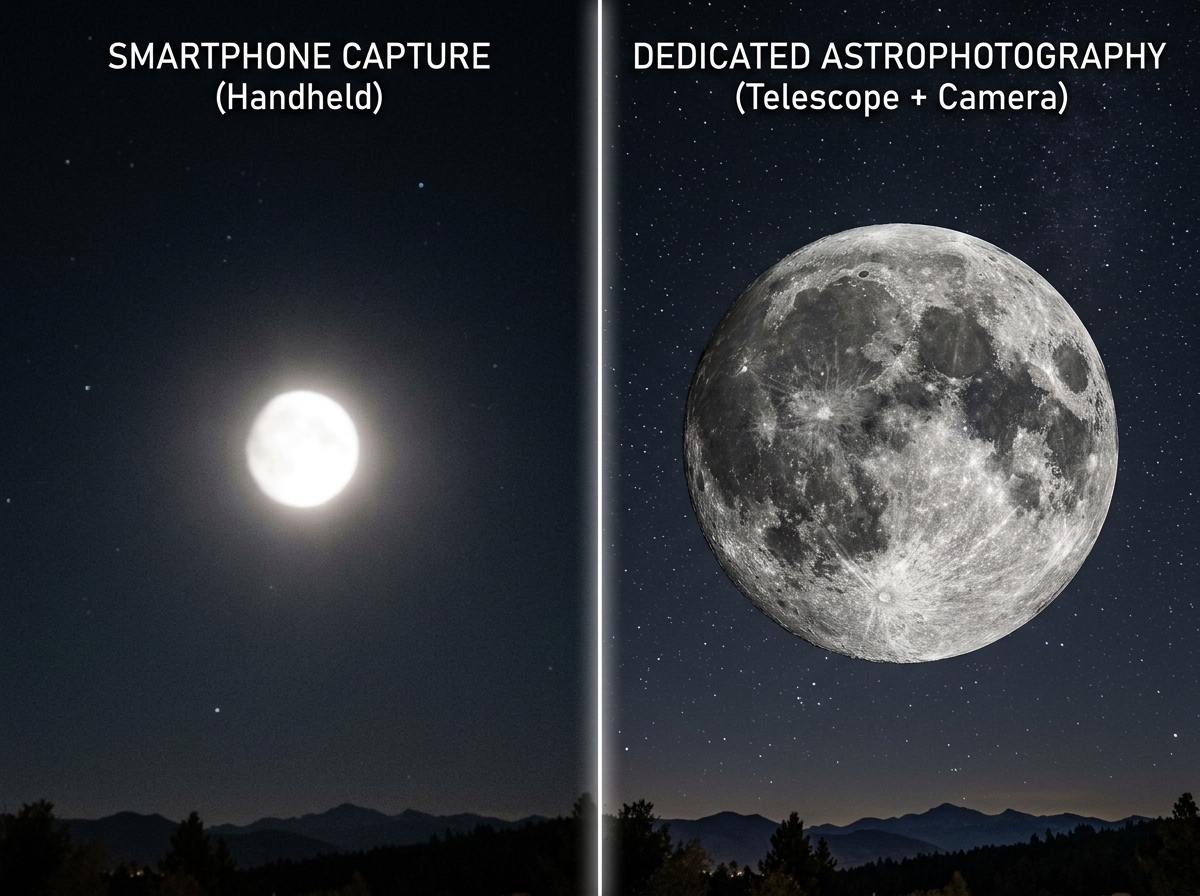
You see a stunning full moon hanging in the sky. You pull out your phone. You tap the shutter. And what you get is a washed-out white smudge that looks nothing like what your eyes saw.
You’re not doing anything wrong. Your phone is.
Here’s a quick answer to what you need to know:
- Tap the moon on your screen to focus directly on it
- Drag the exposure slider down until the moon looks gray, not white
- Lock your focus and exposure (press and hold on iPhone, or use AE/AF lock)
- Use a tripod or prop your phone on a stable surface
- Avoid Night Mode — the moon is bright, and Night Mode will overexpose it
- Zoom in using optical zoom only — pinch-zooming makes things worse
- Shoot during twilight for better contrast and a more interesting sky
The core problem is a mismatch: your phone’s camera tries to balance the whole scene, which means it massively overexposes the bright moon against a dark sky. The result is that blob you’ve seen a hundred times.
The good news? You don’t need expensive gear to fix it. A few simple adjustments make a dramatic difference.
Why your phone moon photos look like blurry white blobs
To understand why taking photos of the moon with phone sensors is so difficult, we have to look at how cameras “think.” Most smartphone cameras are designed to capture faces, landscapes, and food in well-lit environments. When you point your lens at the night sky, your phone encounters a massive “dynamic range” problem.
The moon is essentially a giant rock illuminated by direct sunlight. It is incredibly bright—much brighter than the surrounding black sky. Your phone’s light meter sees the vast darkness of space and thinks, “Wow, it’s dark out here! I better brighten everything up so we can see.” In doing so, it blows out the highlights of the moon, turning those beautiful craters into a featureless white circle.
Another culprit is the “Moon Illusion.” To our eyes, the moon looks huge when it’s near the horizon, but this is a psychological trick played by our brains. In reality, the moon occupies a tiny portion of the sky. Most phone cameras use wide-angle lenses, which make the moon appear even smaller. When the autofocus fails to find a sharp edge on that tiny bright dot, it results in a blurry mess.
Atmospheric conditions also play a role. Heat rising from the ground or moisture in the air can distort the light before it even reaches your sensor. For a deeper dive into the physics of the dark, check out our night-sky-photography-a-complete-guide-for-beginners.
Essential camera settings for taking photos of the moon with phone
If you want to move beyond the “blob,” you need to take the wheel away from your phone’s AI. Manual adjustments are the secret sauce of photographing-the-heavens-best-smartphone-settings-for-astrophotography.
ISO and Shutter Speed
The moon is bright, so you don’t need a high ISO. High ISO settings introduce “noise” or graininess. Aim for an ISO between 50 and 200. For shutter speed, the moon moves faster than you think! To avoid motion blur, keep your shutter speed at 1/100th of a second or faster. NASA photographers often suggest treating the moon like a daylight subject because, technically, you are photographing reflected sunlight. You can learn more about these principles in this guide on How to Photograph the Moon.
Exposure Compensation
This is the most important “quick fix.” When you tap the moon on your screen, a sun icon or slider usually appears. Drag it down. You want to underexpose the shot by -1 to -2 EV (Exposure Value). This forces the camera to stop trying to brighten the sky and focus on the details of the lunar surface.
RAW Format
If your phone supports it (like Apple ProRAW or Android’s RAW mode), turn it on. RAW files preserve all the data the sensor captures without the aggressive smoothing and sharpening that JPEGs apply. This gives you much more room to “rescue” details during editing.
Mastering manual controls for taking photos of the moon with phone
For those with “Pro” or “Manual” modes, you can apply the Looney 11 rule. This is a classic photography rule: at an aperture of f/11, your shutter speed should be the reciprocal of your ISO. Since most phones have a fixed aperture (usually around f/1.8), you’ll need to use an even faster shutter speed to compensate.
| Setting | Auto Mode Result | Manual/Pro Mode Result |
|---|---|---|
| ISO | High (Grainy) | Low (Clean) |
| Exposure | Overexposed (White Blob) | Balanced (Visible Craters) |
| Focus | Hunting/Blurry | Sharp/Locked |
| Shutter Speed | Slow (Motion Blur) | Fast (Crisp Detail) |
Don’t forget to use AE/AF Lock. Once you have the moon in focus and the brightness turned down, press and hold that spot on the screen until the “lock” icon appears. This prevents the phone from readjusting right before you hit the shutter.
Post-processing tips for taking photos of the moon with phone
The photo you take is just the beginning. Using an app like Lightroom Mobile can transform a “decent” shot into a “stunning” one.
- Dehaze Tool: This is magic for moon photos. It cuts through atmospheric “glow” and brings out the contrast in the craters.
- Local Clarity: Instead of sharpening the whole image (which adds grain to the sky), use a brush tool to apply clarity only to the moon.
- White Balance: The moon can often look too yellow or too blue. Adjust the temperature to about 4000K-5000K for a natural, stony gray look.
- Cropping: Since the moon is small, you’ll likely need to crop. If you shot in RAW, your crop will look much sharper than a digital zoom photo.
Stabilization and gear: Beyond the handheld shot
Even the steadiest hands shake slightly. When you are zoomed in on a target 238,000 miles away, even a microscopic tremor looks like an earthquake.
The Power of Stability
A tripod is your best friend. If you don’t have one, a “Gorillapod” or even propping your phone against a window frame can work. To avoid the shake caused by your finger touching the screen, use the self-timer (set to 3 or 10 seconds). This gives the phone time to stop vibrating after you press the button.
Expert Tip: Did you know your wired headphones can act as a remote shutter? Plug them in and use the volume buttons to take the photo! For more gear advice, check out mastering-mobile-astrophotography-a-beginners-guide.
Zoom: Optical vs. Digital
Always know your phone’s limits. Optical zoom uses the actual lenses to get closer, maintaining quality. Digital zoom is just “pinch-to-zoom,” which crops the image and blows up the pixels, resulting in a pixelated mess. If your phone has a 3x or 10x optical lens, use that, but stop there. It is always better to take a sharp photo at 10x and crop it later than to take a blurry photo at 100x digital zoom.
Advanced techniques: AI, telescopes, and afocal imaging
Technology has come a long way. Some modern phones use “Super Resolution” and deep learning to enhance moon photos. For example, Samsung’s Scene Optimizer recognizes the moon and combines multiple frames to remove noise and add detail. While some purists call this “fake,” it is actually a sophisticated form of “lucky imaging”—stacking the best parts of many photos into one.
Afocal Imaging
If you want professional-level results, try afocal imaging. This is a fancy way of saying “pointing your phone through a telescope or binoculars.”
- Focus the telescope on the moon with your eye first.
- Hold your phone lens up to the eyepiece.
- Use a cheap smartphone telescope adapter to hold it steady.
- Adjust the exposure on your phone screen.
This method gives you the massive magnification of a telescope with the ease of a smartphone. You can find more on this in Want to photograph the Moon with your smartphone camera, but can’t quite manage it? Here’s how to do it. If you’re lucky enough to catch an event, see our guide on lunar-love-photographing-eclipses-with-a-phone-camera.
Timing and composition for the perfect lunar shot
A photo of just the moon is a scientific record; a photo of the moon behind a lighthouse or a mountain is art.
The Best Phases
The full moon is actually the hardest phase to photograph because the sun is hitting it directly, washing out the shadows. If you want to see craters and mountains, shoot during a waxing crescent or a gibbous moon. The “terminator line” (the line between light and dark) is where the shadows are longest and the textures are most visible.
The “Golden Hour” for Moonbeams
Shoot during twilight (30-60 minutes after sunset). At this time, there is still some blue in the sky, which provides better contrast and allows you to capture foreground elements like trees or buildings without them becoming pitch-black silhouettes. This “atmospheric dimming” makes the moon less blindingly bright, making it easier for your phone to handle the exposure.
To track when the moon will rise or set near a specific landmark, use a lunar calendar or a stargazing app. For more on planetary alignment, visit out-of-this-world-photographing-planets-with-your-phone.
Frequently Asked Questions about smartphone moon photography
Why does the moon look so small in my phone photos?
This is due to the wide-angle lenses standard on most phones. Your eyes have a much narrower “field of view” when focusing on an object than a standard phone lens. To fix this, use your phone’s dedicated telephoto lens (if it has one) rather than the standard 1x lens.
Should I use Night Mode for moon photos?
Generally, no. Night Mode is designed to brighten up dark scenes by taking a long exposure. Since the moon is already very bright, Night Mode will almost always overexpose it, turning it back into that white blob we’re trying to avoid. Stick to manual exposure or “Pro” mode.
Can I take moon photos through clouds?
Yes! Thin, wispy clouds can act as a natural diffuser, creating a beautiful, moody glow around the moon. However, thick clouds will make it impossible for your phone to focus. If it’s a cloudy night, try focusing on a distant streetlamp first to lock your focus distance before aiming at the moon.
Conclusion
Taking photos of the moon with phone cameras doesn’t have to be a frustrating experience. By moving away from “Auto” mode, stabilizing your device, and timing your shots for twilight, you can capture the lunar surface in all its cratered glory.
Astrophotography is a skill that requires practice. Don’t be discouraged if your first few attempts still look a bit “blobby.” Keep experimenting with your exposure settings and different moon phases. We at Pratos Delícia believe that the best camera is the one you have with you—and with these tips, that camera is now a powerful tool for exploring the night sky.
Ready to take your skills to the next level? Explore more photography tutorials and guides on our site!
