
Why Editing Milky Way Photos Is the Secret to Stunning Night Sky Images
Editing Milky Way photos is what separates a flat, noisy RAW file from a breathtaking image of the galaxy stretching across the night sky.
Here’s a quick overview of how to do it:
- Set up your defaults – Switch to Adobe Standard profile, disable sharpening and noise reduction, enable lens corrections
- Set white balance – Boost vibrance and saturation to +100, adjust temperature (~3,500-4,000K) and tint, then reset
- Make global adjustments – Tweak exposure, contrast, highlights, shadows, whites, and blacks in the Basic panel
- Color grade – Add blue to shadows, warm orange to midtones using the Color Grading panel
- Sharpen and reduce noise – Use custom settings (sharpening amount ~30, color noise reduction +10-20) to preserve star color
- Apply local adjustments – Use graduated filters, radial filters, and brushes to handle light pollution and make the core pop
- Spot heal – Remove hot pixels, airplane trails, and unwanted lights
- Final check – Apply a profile like Modern 04 at reduced intensity and check against a black background
The good news? You don’t need expensive gear or years of experience to get great results.
Because the Milky Way is too faint for the human eye to see the way a camera captures it, there’s no strict “correct” version of what your photo should look like. That creative freedom is what makes Milky Way editing so rewarding — and so forgiving for beginners.
The challenge is knowing where to start. Lightroom’s dozens of sliders can feel overwhelming, and the wrong moves can introduce halos, crush detail, or make your image look fake and over-processed.
This guide walks you through a clear, step-by-step workflow — from your very first RAW import to a finished image you’ll be proud to share.
Setting Up Your Digital Darkroom to Edit Milky Way Photos
Before we start moving sliders, we need to prepare our workspace. Think of this like cleaning your kitchen before cooking a gourmet meal. If your foundations are messy, the final result will suffer. When we edit Milky Way photos, the very first thing we do is address the technical “baggage” that comes with high-ISO digital photography.
Start by importing your RAW files. We always recommend shooting in RAW because it preserves all the data your sensor captured. If you are capturing-the-milky-way-on-a-phone, ensure you are using a Pro or Manual mode that outputs DNG files. Using smartphone-lens-adapters-for-milky-way-photography can also help gather more light, making your starting point much cleaner.
In the Lightroom Develop module, head straight to the Profile section. Most cameras default to “Adobe Color,” but for astrophotography, many experts prefer “Adobe Standard” or “Adobe Standard v2.” These profiles provide a flatter, more neutral starting point with better dynamic range.
Next, scroll down to the Lens Corrections panel. Check “Remove Chromatic Aberration” and “Enable Profile Corrections.” This fixes the “purple fringing” around bright stars and corrects the barrel distortion often found in wide-angle lenses. However, a pro tip: sometimes the natural vignetting (dark corners) of a lens actually helps frame the Milky Way. If the profile correction makes your corners too noisy, dial back the vignetting slider.
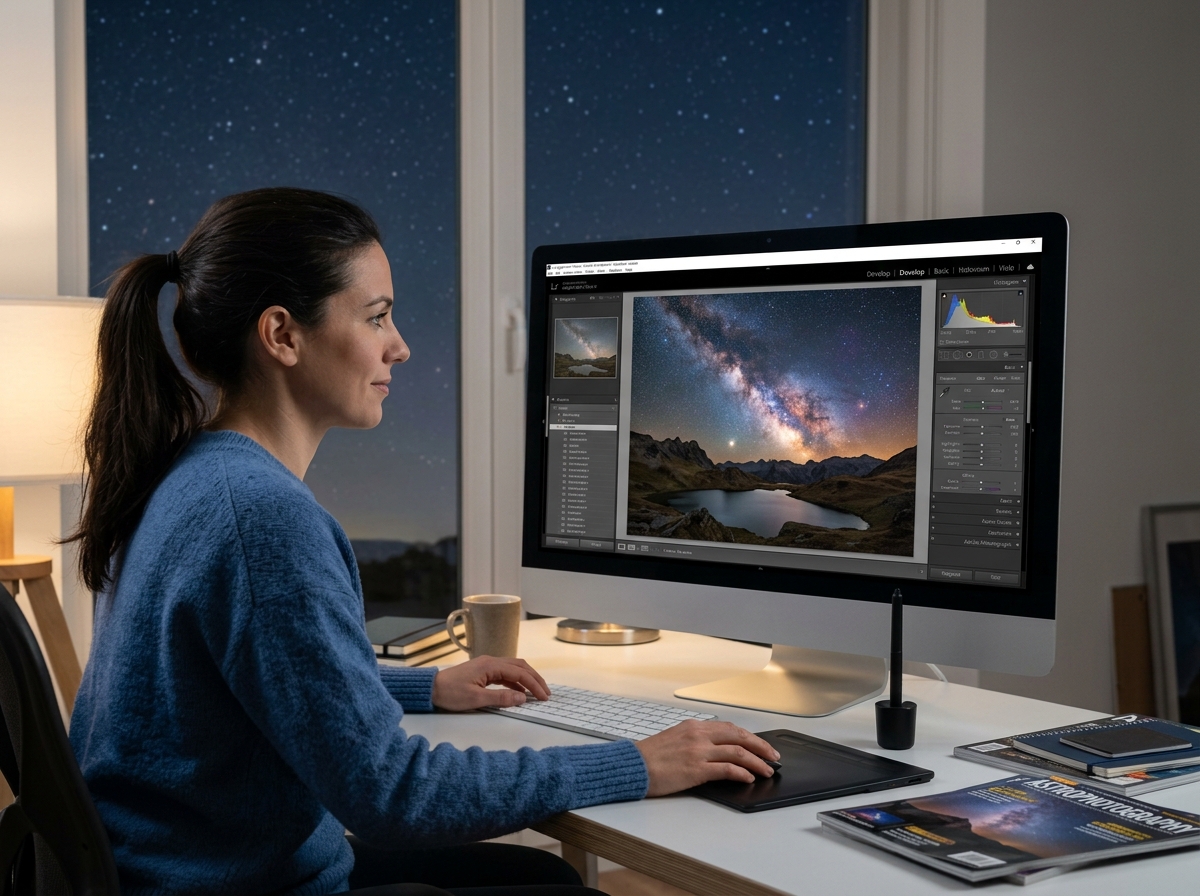
Choosing the Right Software to edit Milky Way photos
The “Big Two” are Adobe Lightroom and Photoshop. Lightroom is fantastic for 90% of the work—it’s intuitive, handles RAW files beautifully, and its masking tools have become incredibly powerful. Photoshop is where you go for the “heavy lifting,” such as complex blending or advanced star reduction.
If you’re looking for alternatives, DxO PhotoLab is renowned for its “DeepPRIME” noise reduction, which is magic for high-ISO shots. Capture One offers superior color handling that some professionals swear by. For those on the go, there are several top-apps-to-edit-your-way-to-a-perfect-galaxy-shot, and galaxy-photos-enhancement-made-easy-with-phone-apps shows that mobile editing is no longer a compromise.
Finding a Neutral White Balance
White balance is arguably the most important setting in your entire workflow. Because the camera’s Auto White Balance (AWB) often fails in the dark, your RAW file might look sickly orange or ghostly green.
To find a neutral starting point, we use the Vibrance Trick:
- Crank Vibrance and Saturation all the way to +100. Your photo will look hideous—don’t panic!
- Adjust the Temp slider until the blue and yellow tones seem balanced.
- Adjust the Tint slider until the green and magenta tones are balanced.
- Once the sky looks like a neutral, ugly grey-blue, reset Vibrance and Saturation to zero.
Usually, a temperature between 3,500K and 4,000K is the “sweet spot” for a natural-looking night sky.
The Core Workflow: Global Adjustments and Color Balancing
Now that our canvas is prepped, we move into global adjustments. This is where we define the “bones” of the image. When you edit Milky Way photos, you are essentially trying to maximize the “signal” (the stars and galactic dust) while minimizing the “noise” (the grainy artifacts).
In the Basic Panel, follow this general logic:
- Exposure: Increase slightly if the image is too dark, but be careful not to blow out the brightest parts of the Milky Way core.
- Contrast: A healthy boost (around +20 to +40) helps separate the stars from the sky.
- Highlights & Whites: Boosting these (e.g., Whites +30) makes the stars “pop.”
- Shadows & Blacks: Dropping the Blacks (e.g., -20) helps deepen the sky, creating a rich backdrop for the galaxy.
If you are working on a mobile device, check out enhancing-milky-way-shots-on-mobile-the-best-apps for tools that replicate these desktop features. Even with enhancing-milky-way-shots-on-mobile-apps, the goal remains the same: create a balanced histogram where the data isn’t “clipping” (touching the far left or right edges).
Mastering Color Grading to edit Milky Way photos
In the old days, we used “Split Toning.” Now, we have the Color Grading wheels. This tool is a game-changer for astrophotography. Instead of just changing the overall tint, we can inject specific colors into different brightness levels.
- Shadows: We often add a touch of deep blue or navy. This makes the “empty” space of the sky feel vast and cold.
- Midtones: This is where the magic happens. Use the midtones wheel to add a warm orange or gold. Since much of the Milky Way’s dust is in the midtone range, this brings out the “glow” without making the bright stars look orange.
- Highlights: Keep these relatively neutral or slightly cool to ensure the stars stay white.
For those learning galactic-details-how-to-capture-the-galaxy-with-a-phone-camera, subtle color grading is always better than heavy-handed saturation.
Using the Tone Curve for Depth
The Tone Curve is your precision tool for contrast. While the Basic panel sliders are “broad brushes,” the curve allows you to target specific brightness values.
We typically use a “Shallow S-Curve.” By clicking a point in the highlights and dragging it up, and clicking a point in the shadows and dragging it down, you create a localized contrast that makes the Milky Way appear three-dimensional. This is especially useful for photographing-the-milky-way-urban-astrophotography-with-an-iphone, where light pollution can make the sky look flat.
Advanced Techniques: Making the Galactic Core Pop
The “Core” is the star of the show. To make it truly stand out, we need to use selective adjustments.
- Clarity and Texture: Be careful here! While a boost of +20 Clarity can make the dust clouds look gritty and detailed, going too far (like +60) can introduce ugly halos around stars. We often prefer Texture for a more natural sharpening of the galactic dust.
- Dehaze: This is the “secret weapon” for night sky photos. A small amount (+10 to +15) can cut through atmospheric haze and light pollution, making the sky look significantly darker and the stars sharper.
- Dodging and Burning: Use a soft Adjustment Brush. “Dodge” (brighten) the light lanes of the Milky Way and “Burn” (darken) the dark dust rifts. This manual touch adds a level of artistry that global sliders simply can’t match.
Enhancing the Sky and Foreground
A great Milky Way photo usually has a compelling foreground. However, the settings that make the sky look good often make the ground look like a black hole.
Use a Linear Gradient (Graduated Filter) to pull up the exposure on the foreground. If you find the best the-best-locations-for-capturing-the-milky-way-with-your-smartphone, you’ll likely have interesting rocks or trees to work with. Using optimal-lenses-for-smartphone-milky-way-photos ensures these elements are sharp from edge to edge.
If the horizon has an orange glow from a nearby city, use a Graduated Filter with a negative Temp (blue) and negative Saturation to neutralize that light pollution.
Specialized Astrophotography Effects
As you progress in your journey to edit Milky Way photos, you might want to try advanced techniques.
| Technique | Purpose | Tool |
|---|---|---|
| Orton Effect | Creates a dreamy, ethereal glow | Photoshop (Blur + Contrast) |
| Star Reduction | Makes the galaxy core more visible | Photoshop (Minimum Filter) |
| Stacking | Drastically reduces noise | Sequator / Starry Landscape Stacker |
| Luminosity Masks | Precision targeting of specific brightness | Photoshop / TK Panel |
The Orton Effect is particularly popular. By adding a slight blur and high contrast to a duplicated layer and setting the opacity low (around 10-20%), you can make the stars appear to “glow” like they do in a storybook.
Refining the Image: Noise Reduction and Local Masks
High ISO settings (like 3200 or 6400) are necessary to catch the faint light of the stars, but they bring a lot of “grain” or noise.
Lightroom’s default noise reduction is often too aggressive, “smearing” the stars until they look like plastic. Instead, try these custom settings:
- Luminance: +10 to +20 (just enough to take the edge off).
- Color: +25 (this is vital for removing those random red and green speckles).
- Detail (under Color): Increase to 70 or 80 to ensure you don’t lose the natural color of the stars.
Precision Editing with Range Masking
One of the biggest frustrations when you edit Milky Way photos is when an adjustment for the sky accidentally ruins the foreground. Range Masking (now part of the Masking panel in Lightroom) solves this.
If you are using a smartphone-lens-adapters-for-capturing-the-milky-way, you might notice more distortion or noise at the edges. You can use a Luminance Range Mask to select only the dark sky, allowing you to boost the contrast there without affecting your foreground trees or mountains. This prevents the “halos” that occur when a dark object meets a brightened sky.
Final Cleanup and Spot Healing
The final step is the “housekeeping.” Zoom in to 100% and look for:
- Hot Pixels: Bright red, green, or blue dots caused by the sensor getting hot during a long exposure.
- Airplanes and Satellites: These appear as long, straight white lines. Use the Healing Brush to remove them.
- Sensor Dust: Small dark blobs that become visible when you boost contrast.
Apps listed in enhancing-milky-way-shots-on-mobile-the-best-apps-2 often have surprisingly good “Object Removal” tools for this exact purpose.
Frequently Asked Questions about Milky Way Editing
How do I balance realism with artistic interpretation?
This is entirely subjective. Because the human eye doesn’t see the Milky Way in color or with such high contrast, you have a lot of creative freedom. Some photographers prefer a “natural” look with neutral whites and deep blacks. Others love a “fantasy” look with vibrant purples and blues. Our advice? Look at professional astrophotography for inspiration, but ultimately, edit Milky Way photos in a way that makes you feel the wonder of the cosmos.
Why should I check my edits against a black background?
In Lightroom, you can change the background color of the workspace by right-clicking the area around your photo. Switching to a black background is a “stress test” for your image. It reveals if your blacks are “clipping” (becoming pure black with no detail) or if there are strange color casts in the darkest shadows that you missed against a grey background.
What are the most common pitfalls to avoid?
- Over-sharpening: This makes stars look like hard white dots and introduces “crunchy” noise.
- Crushing the Blacks: If you make the sky too black, you lose the faint “nebulosity” (the glowing gas) that surrounds the stars.
- The “Blue” Trap: Many beginners make their photos too blue. The Milky Way core actually has a lot of warm yellows and browns.
Conclusion
At Pratos Delícia, we believe that the beauty of the night sky should be accessible to everyone. Learning to edit Milky Way photos is a journey of practice and patience. By following a structured workflow—starting with a clean RAW base, finding a neutral white balance, and using local adjustments to make the core pop—you can turn a simple snapshot into a masterpiece.
Don’t be afraid to experiment. Every night sky is different, and every photo requires a slightly different touch. For more tips on taking your photography to the next level, check out our More info about post-processing services. Now, grab your camera (or phone!), head out under the stars, and show us what you can create!
